
Bring Your Videos to Life with Transitions
We’ve just launched Transitions for b-rolls, intro & outro cards, and trailers—making it easier than ever to create polished, professional-looking videos.
Choose from 8 different transition styles to match your video’s tone and storytelling.
What You Can Do
- Instantly elevate your videos with a more professional look
- Keep your content smooth and engaging
- Customize transitions to match your brand and style
How to Use Transitions
Start by opening your video project.
Add Transitions to B-Rolls (Key Moments)
-
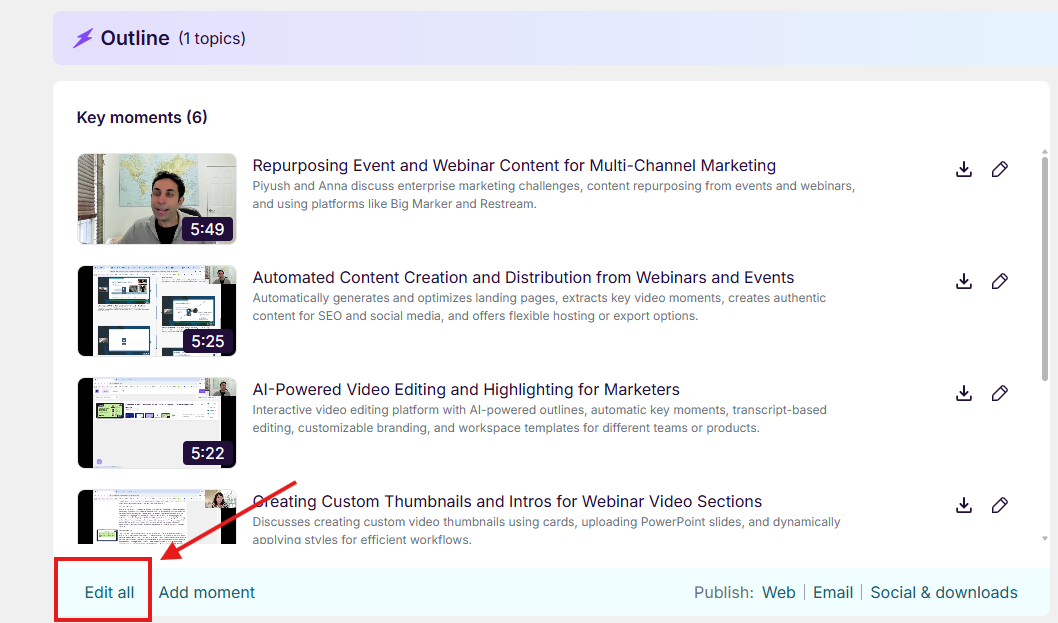
Click “Edit all” in the Key Moments section
-
Select the key moment you’d like to enhance and click “Enhance”

-
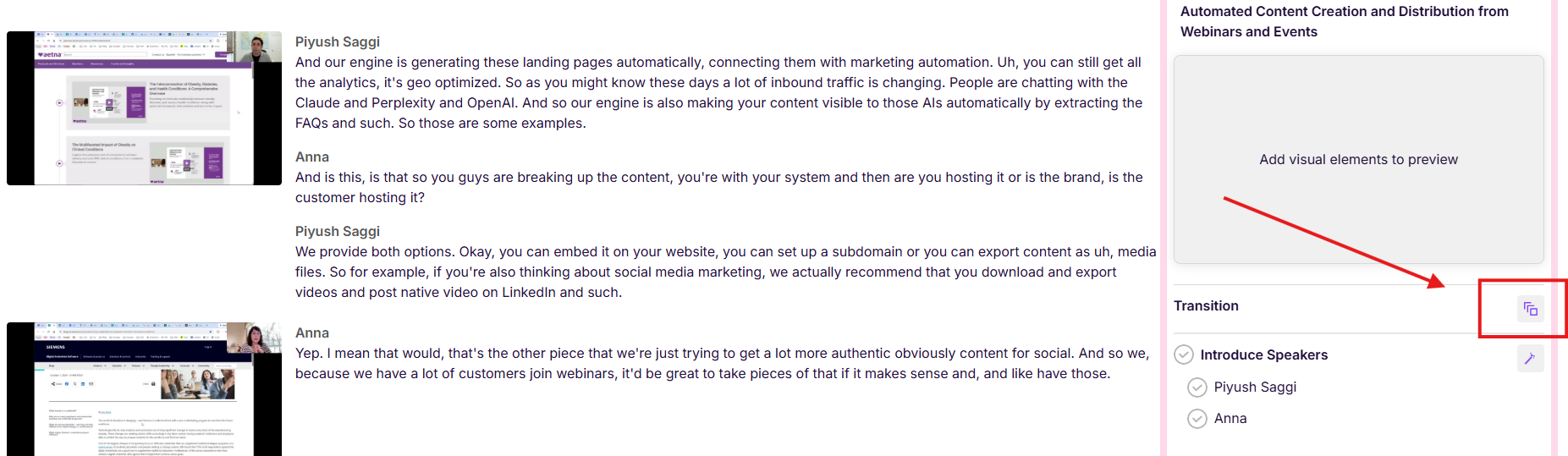
Click the Transitions icon, choose your preferred style, and set the duration. Duration can be set between 0.01 and 1 second
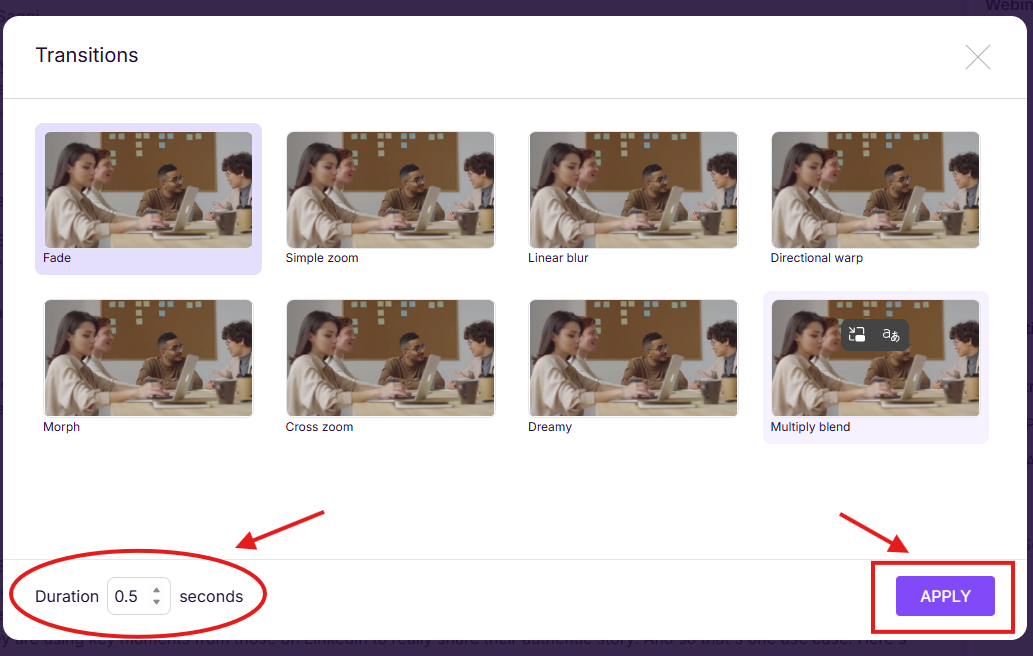
- Click “Apply”
*If you haven’t added a b-roll yet, refer to the b-roll setup instructions here.
Add Transitions to Intro & Outro Cards
-
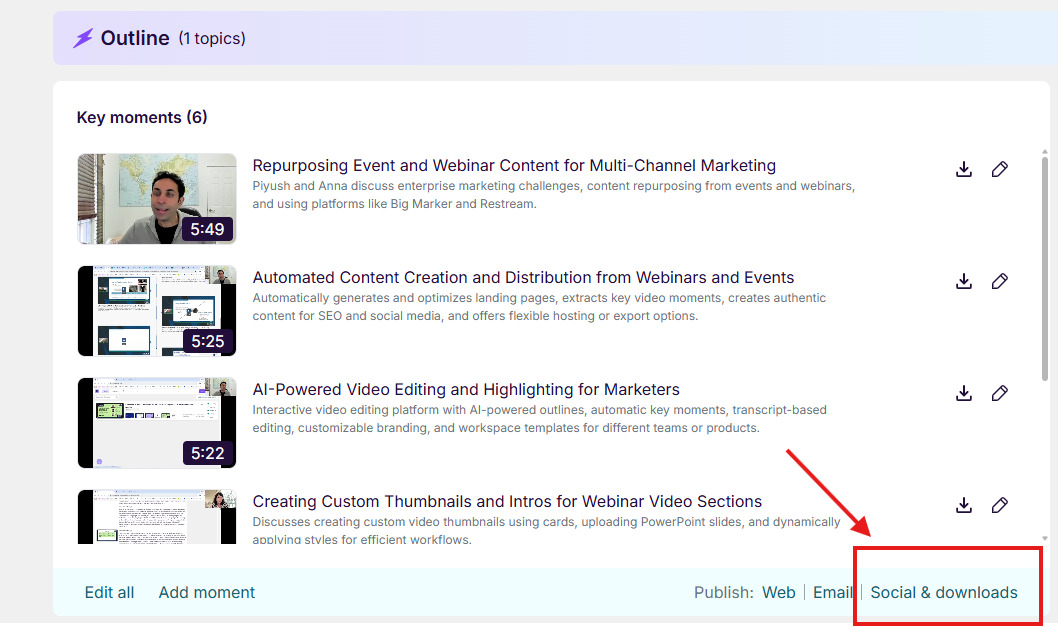
Click “Social & Downloads”
-
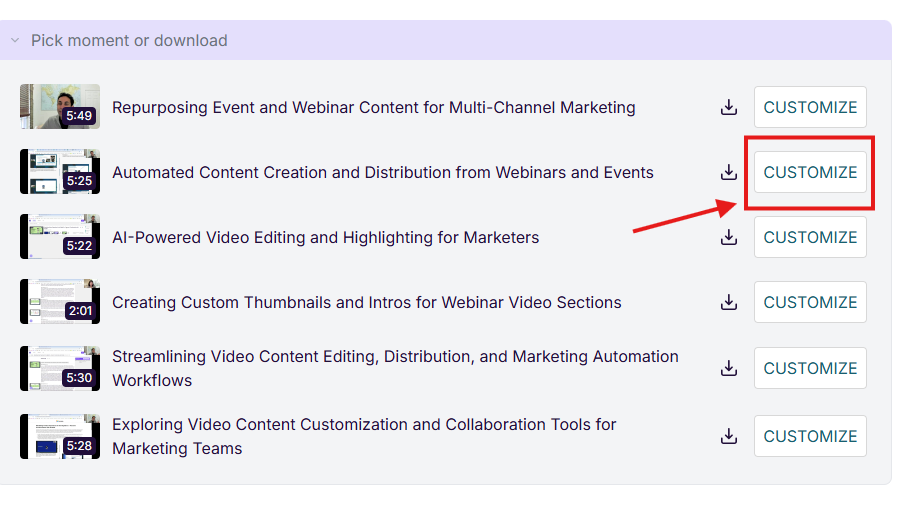
Click on "Customize"
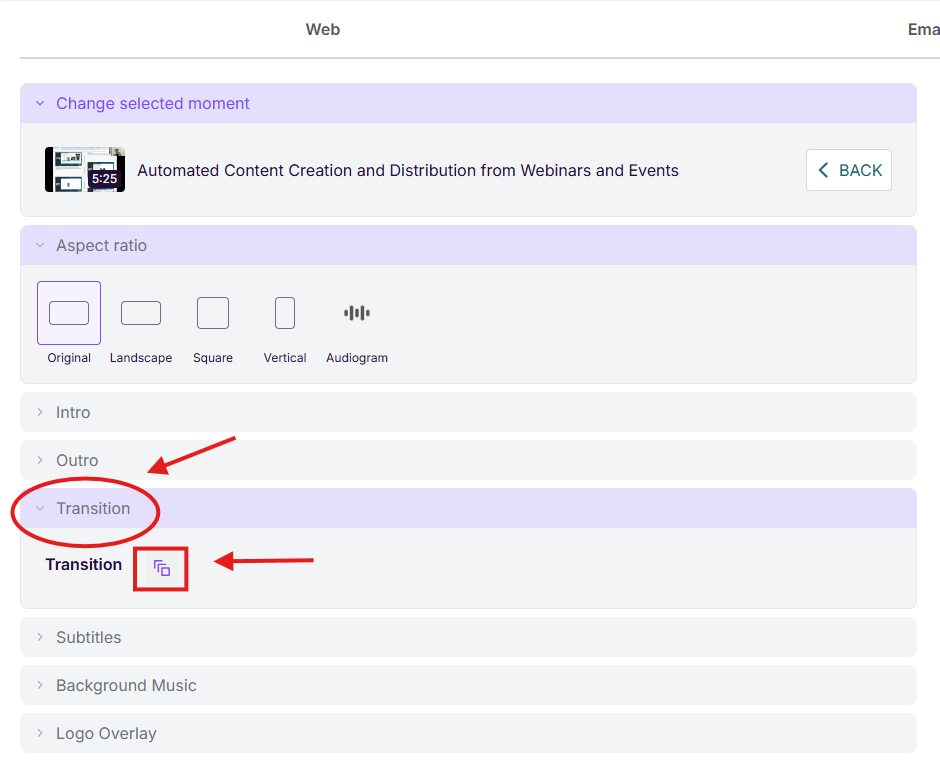
- Click “Transition” to open the dropdown menu
-
Select the Transitions icon, choose your style, and set the duration. Duration can be set between 0.01 and 1 second.
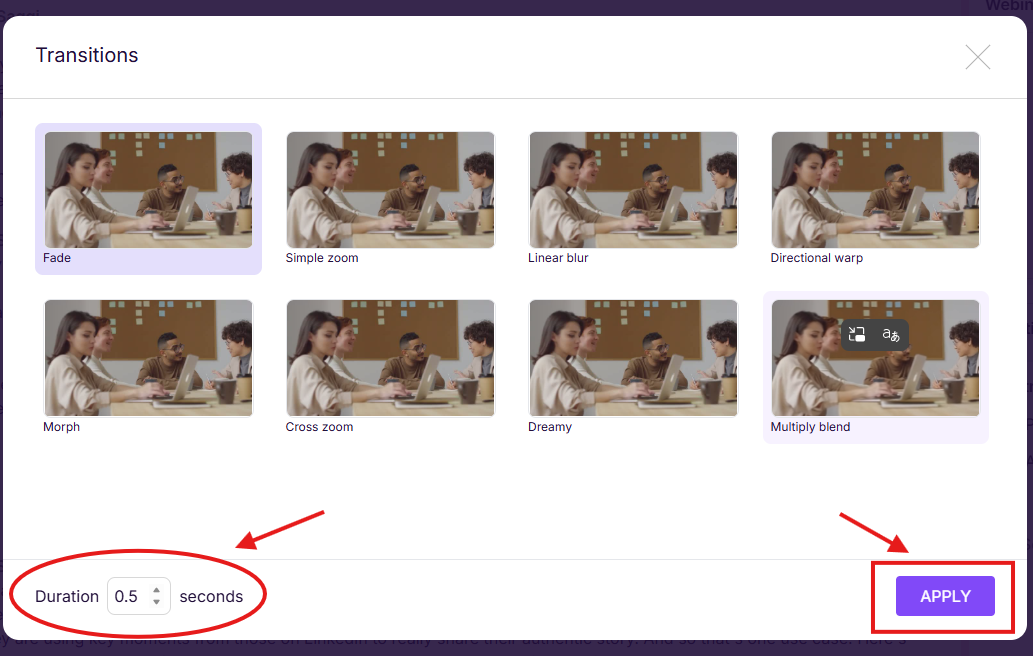
- Click “Apply”
Add Transitions to the Trailer
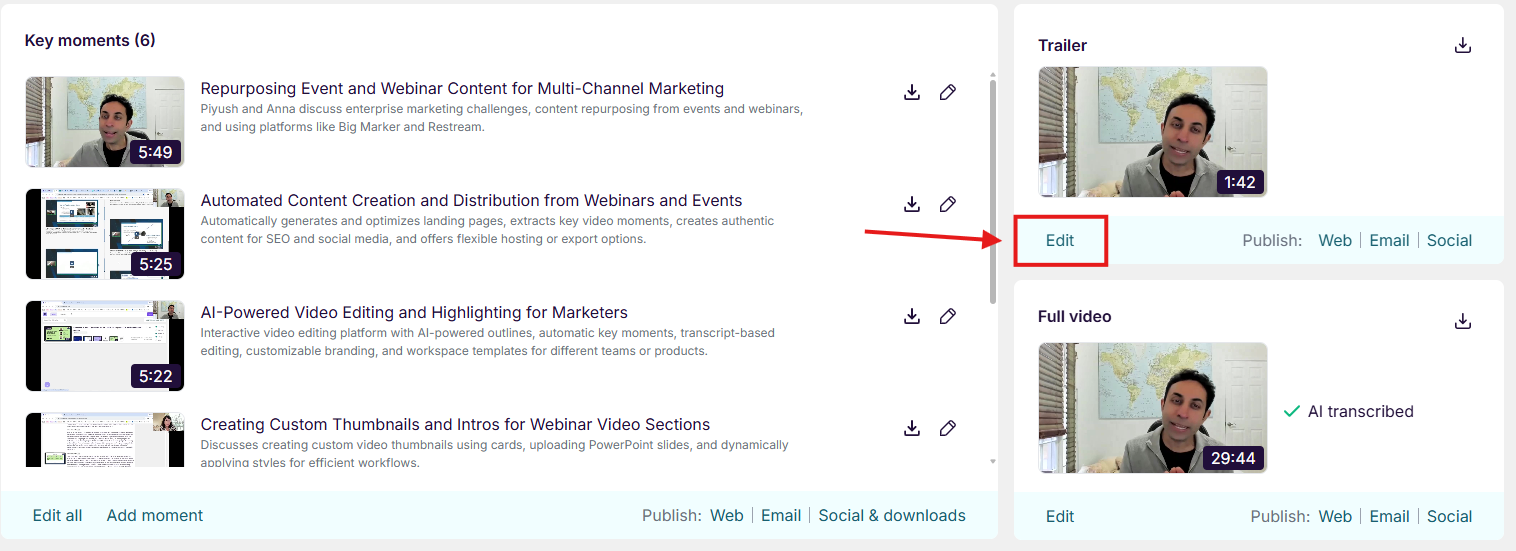
- Go to the Trailer section
-
Click on “Edit”
-
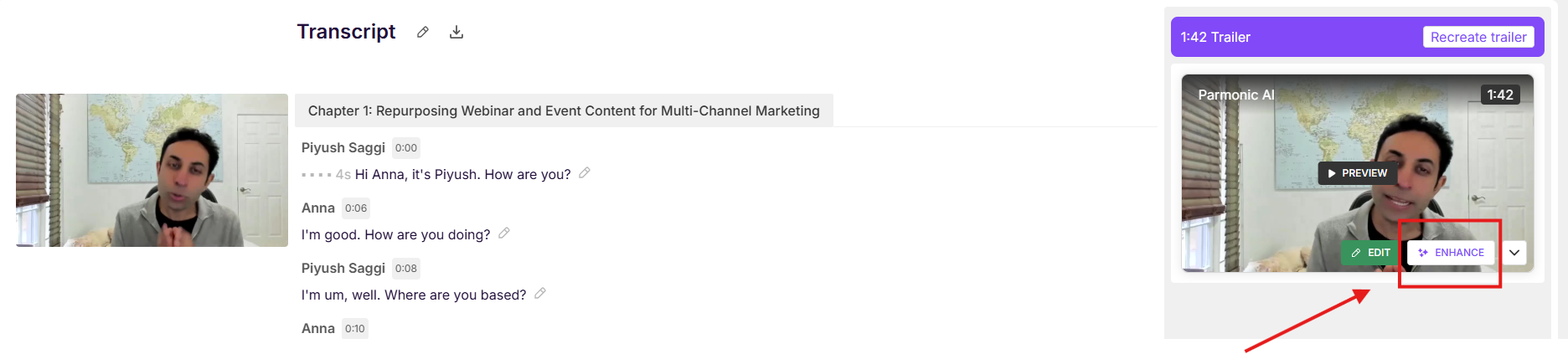
Click “Enhance”
-
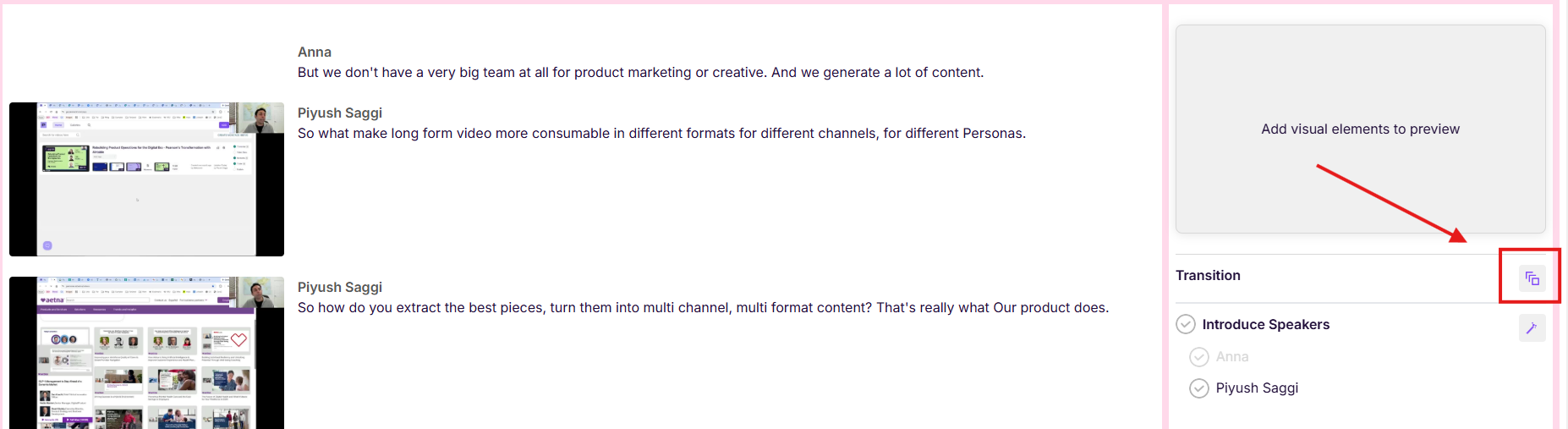
Click the Transitions icon, choose your style, and set the duration. Duration can be set between 0.01 and 1 second.
- Click “Apply”
Preview Your Video:
Preview your video to see how the transitions come together and adjust as needed.
Pro Tips
- The default transition is Fade, but feel free to explore all options.
- Adjust the duration to get the perfect effect—quick and subtle or slow and cinematic.
- If you use multiple b-rolls within the same key moment, the same transition will apply to all of them.
- The same transition is applied to both intro and outro cards, so choose one that works well for both.