
Set Up Automated Landing Pages for HubSpot
Easily publish Automated Landing Pages that pull a template directly from HubSpot and provide moments and videos from Parmonic for your audience. All you need to begin is HubSpot Admin access, or someone nearby with Admin access.
Here's how to set it up and get started.
To set up the template (HubSpot Pre-requisites):
ALPs must be enabled on your Parmonic account. To enable ALPs on your Parmonic account, contact support. (help@parmonic.com)
In order to publish a landing page to HubSpot, your HubSpot theme must have at least one template that:
- Either exists in a folder named `parmonic` (case insensitive)
- Or has the word parmonic in its name
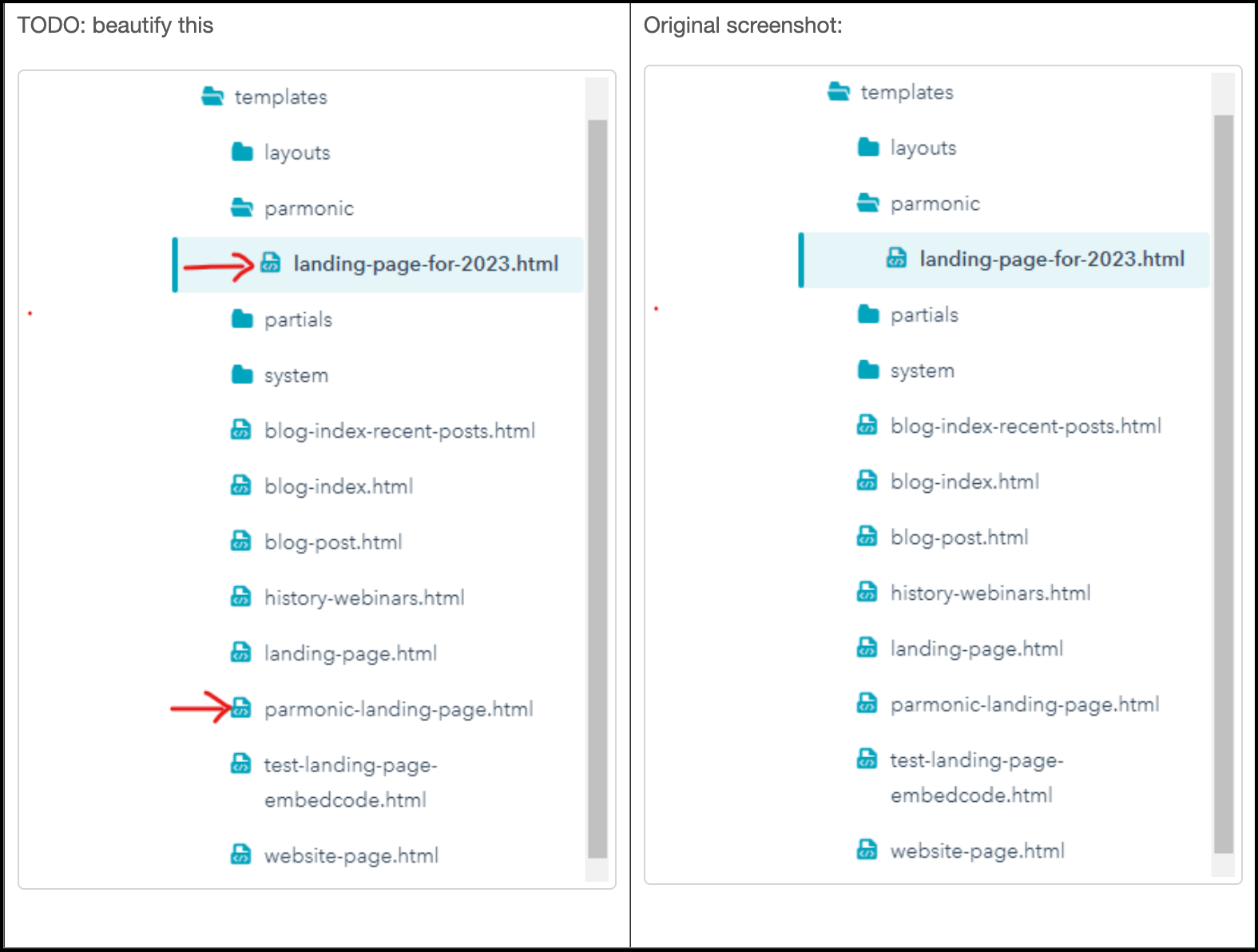
- Configure the cloned template with a few lines of custom code (you’ll just need to copy/paste one time)
Template variables: The template can use the following variables in the page:
| ID | Name | Description |
content.widgets.parmonic.widgetEmbedCode |
Embed Code | Web Experience widget (landing page) embed code |
content.widgets.parmonic.webinarTitle |
Title | Webinar Title in Parmonic |
content.widgets.parmonic.webinarDescription |
Description | Webinar description in Parmonic |
A simple template would like:
<!--

templateType: page
isAvailableForNewContent: true
label: Parmonic Landing Page

-->

{% extends "./layouts/base.html" %}

{% block body %}
<main id="main-content" class="body-container-wrapper">
<h1>{{content.widgets.parmonic.webinarTitle}}</h1>
<p>{{content.widgets.parmonic.webinarDescription}}</p>
{% dnd_area 'dnd_area' label='Parmonic Web Experience' %}
{% dnd_section %}
{% dnd_module path='@hubspot/rich_text' label='Embed Code' %}
{% module_attribute "html"%}
{{content.widgets.parmonic.widgetEmbedCode}}
{% end_module_attribute %}
{% end_dnd_module %}
{% end_dnd_section %}
{% end_dnd_area %}
</main>

{% endblock body %}
- Create a test page to activate this new functionality.
To publish the Hubspot landing page:
Step 1: Go to the Moments tile of the video for which you want to publish a HubSpot landing page.

Step 2: In the video dashboard, navigate to the Moments module and click on 'Web'.

Step 3 : Next, click on the checkbox to select the moments you want to show and click on 'Publish to Hubspot'.

Step 4: This will bring up a pop-up where you will choose from a list of templates, what to name the page and the slug. Hit publish.

You'll receive a confirmation message once the page is published. To test the link, simply paste the copied address into a browser.
